Redesigning Video Editing Experience with the Power of AI
AI Product DesignUX DesignUI DesignLLM AI ApplicationVideo Editor
Introduction
Project Overview
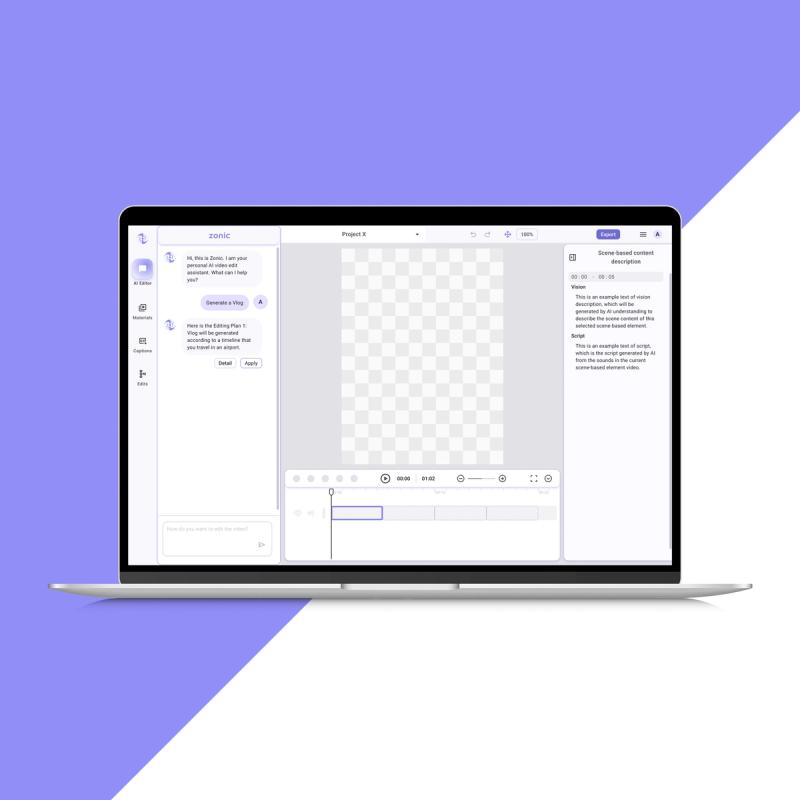
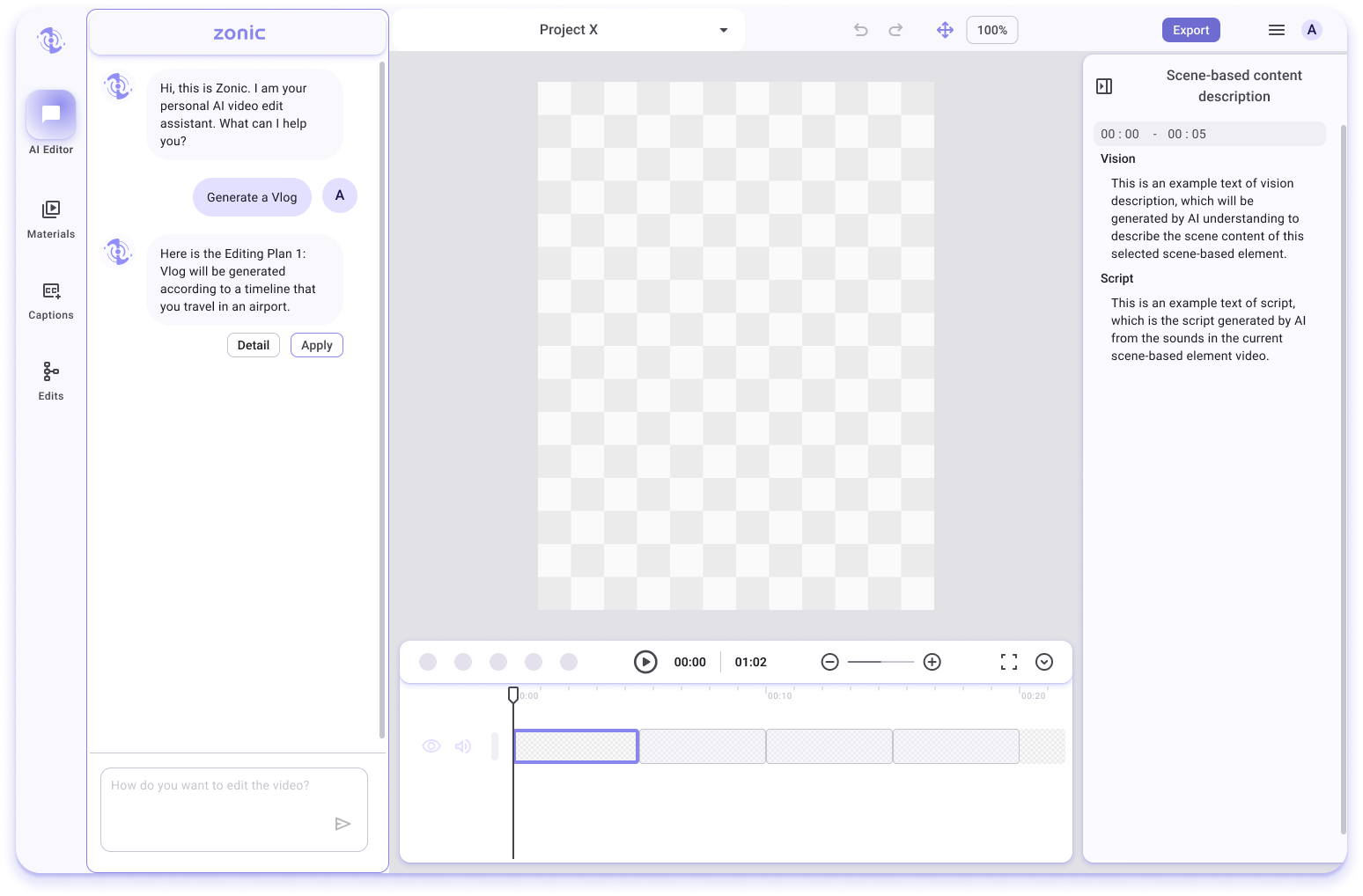
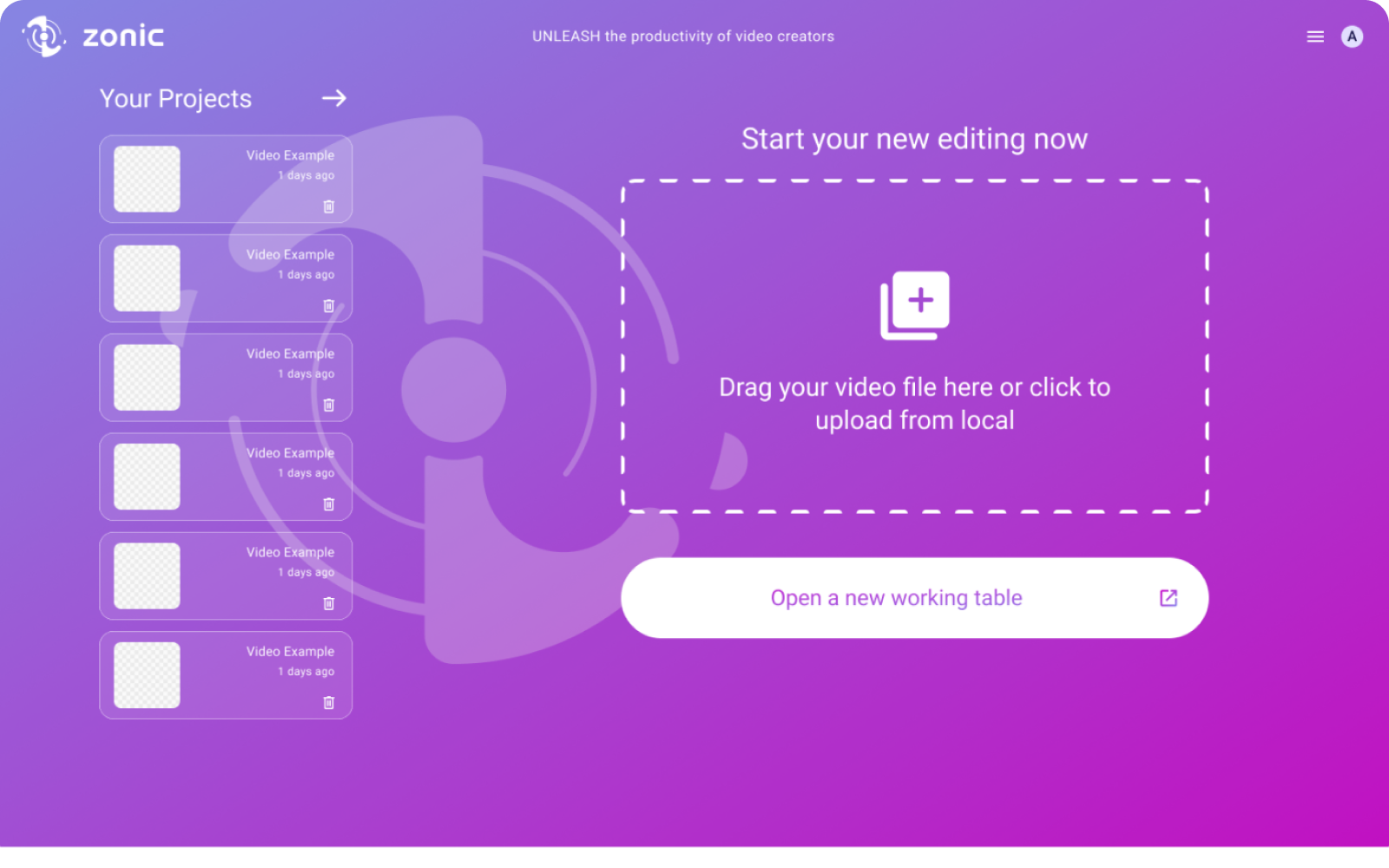
Zonic AI Video Editor is an AI video edit tool powered by advanced video understanding technology, allowing users to cut video by simply chatting with the agent. The feature functions of generating rough cut and outputting multiple styles aim at freeing users from mundane editing tasks and help them focus on creative work. This flagship product of Zonic Tech Limited unleashes the potential of AI in complex tasks, echoing the vision they have when founded by HKUST alumni in July 2022.
Frontend Developer, Backend Developer, Product Lead
Key Learnings
Inter-background collaboration, Prototyping with Figma, Establishing design system
Objective
Transfer the tech solutions into a user-oriented product which will meet the needs of the market and make profits.
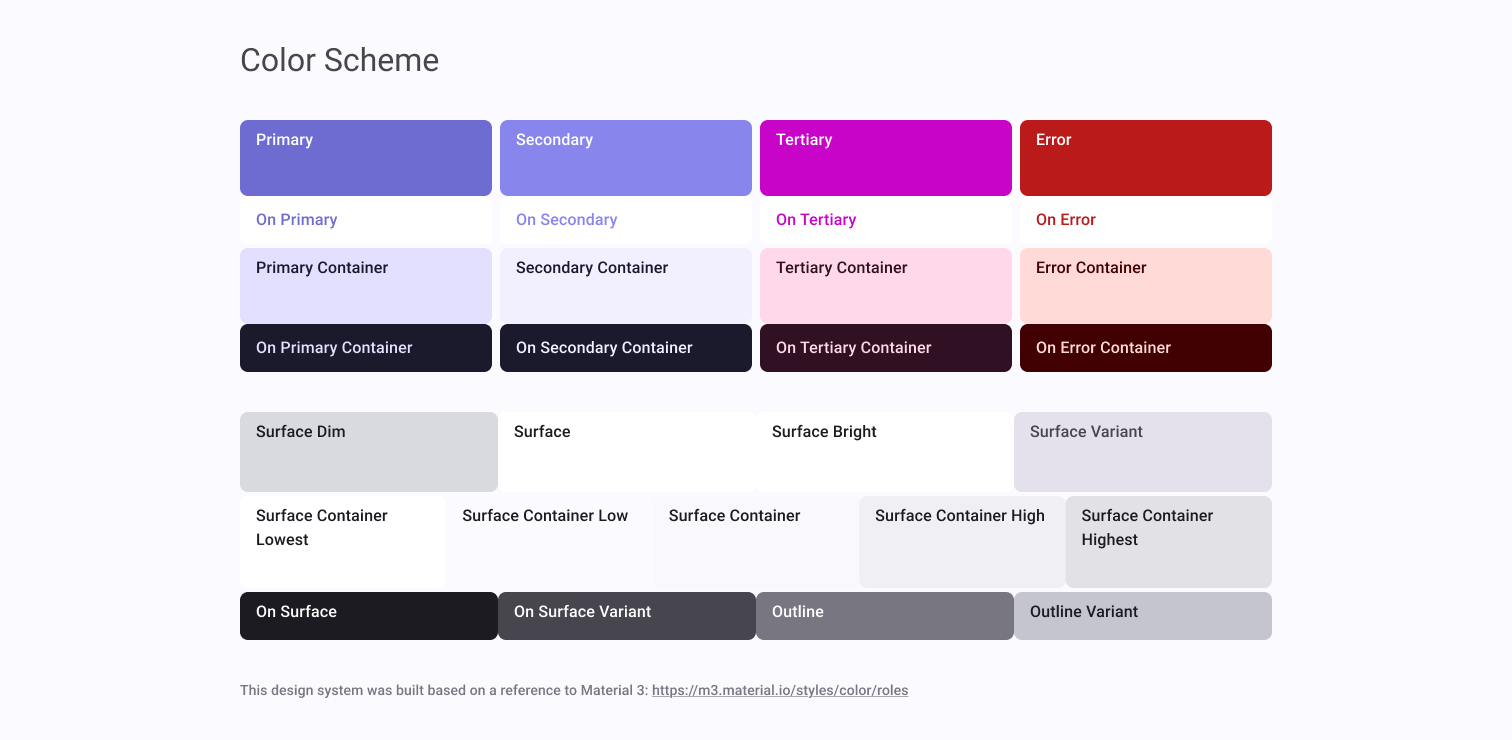
Refine Zonic’s branding system including logo, color, and other visual elements.
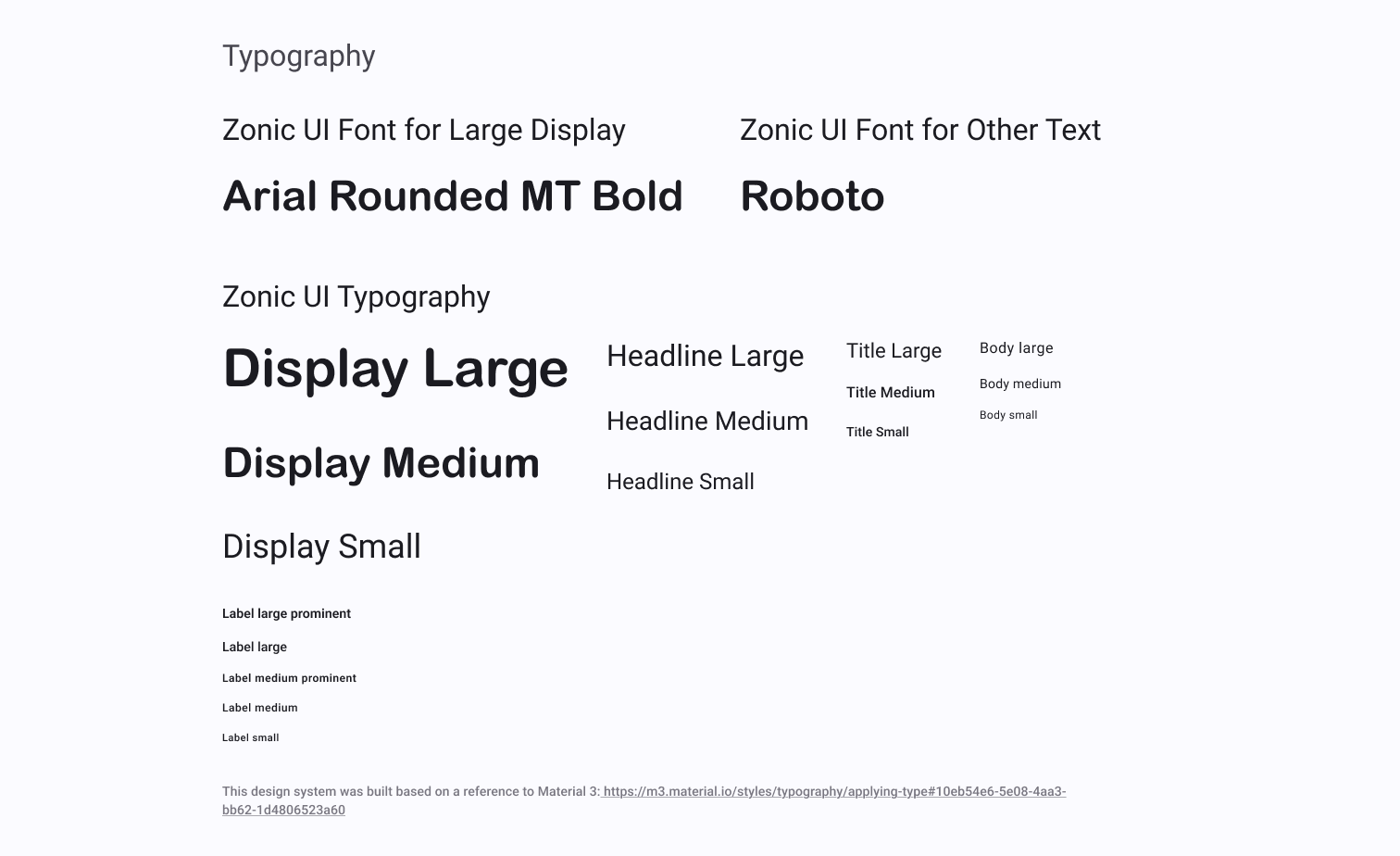
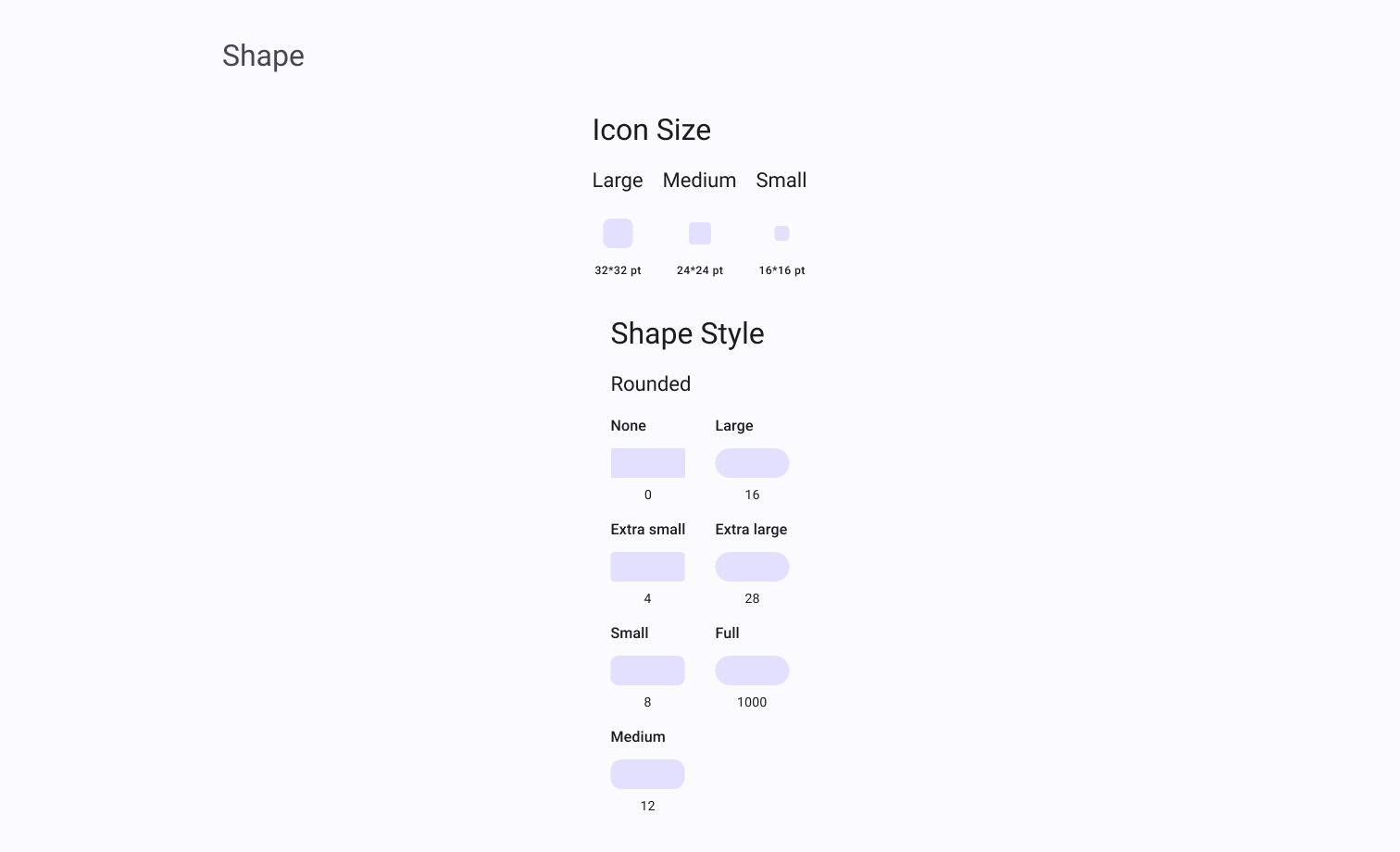
Establish a UI system based on Zonic’s branding system.
Redesign the user flow based on Zonic’s core technology and customer needs.
Proposal and structure new and current functions under the consideration of target user’s needs, technological feasibility as well as potential revenue model.
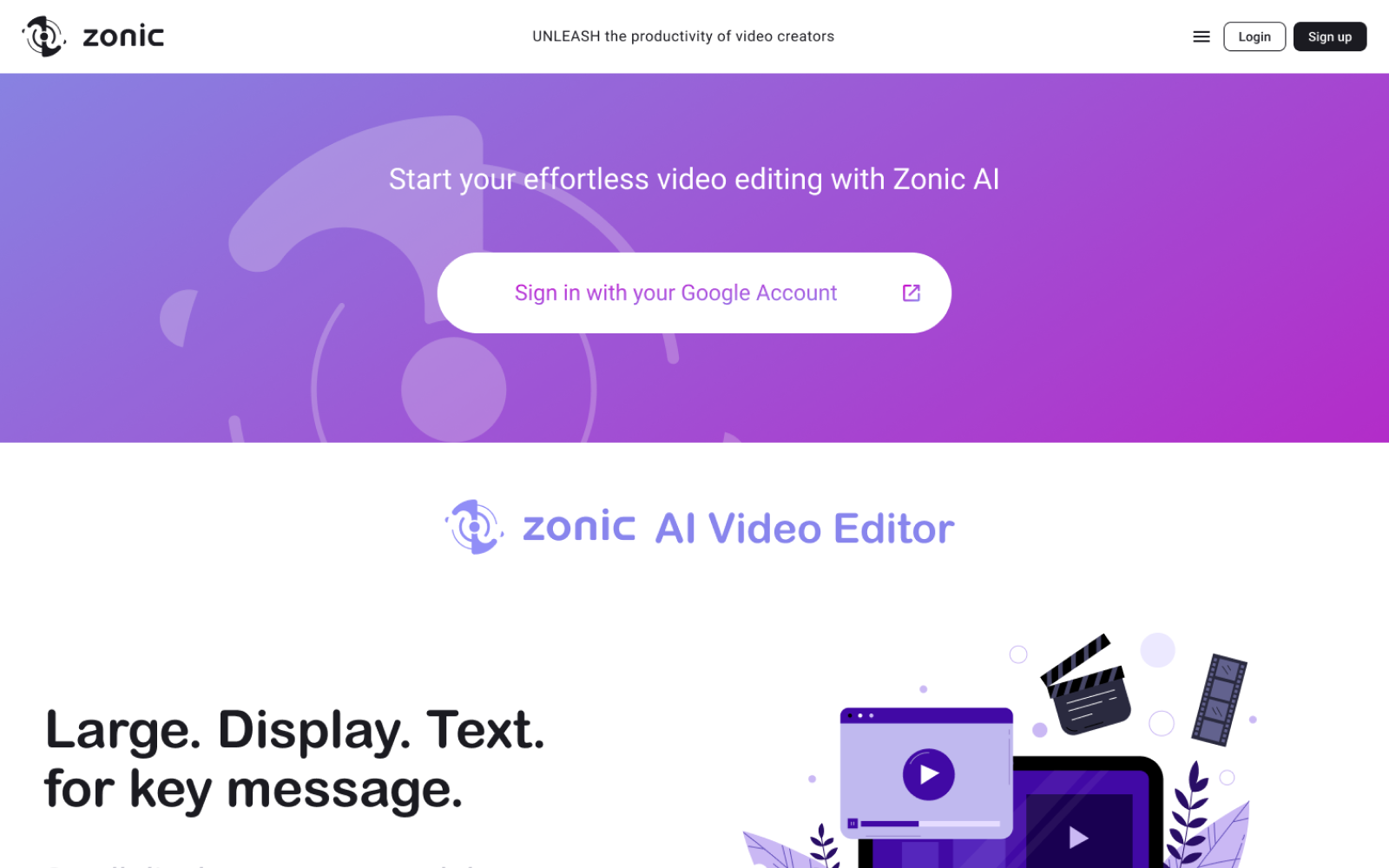
Design a new index page for Zonic and a new app UI for this product.
Defining the Product
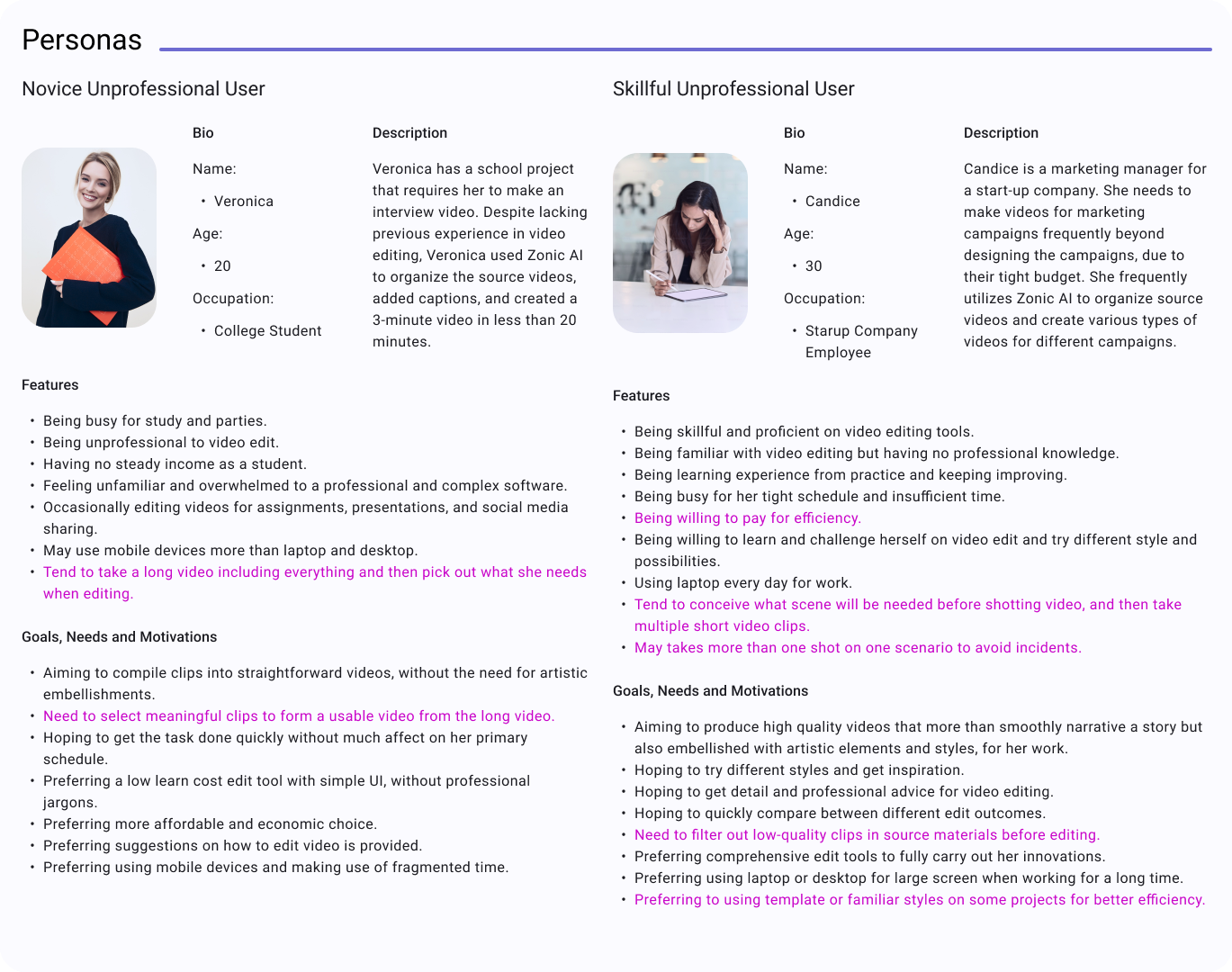
Target Users
Personas
Personas
Problems to Address
Heavy Workload in Film Industry
In average, every one-minute video takes two hours to film and four hours to edit.
The cost of human resources in this industry is increased by the large amount of work required.
The editors spend much time on exhausted mechanical repeat work, causing a limited performance in creativity.
High Bar for Video Editing
Video editing is exclusive to ordinary people who embrace a creative mind because of its high learning cost and professional skills needed.
Goals and Visions
Design Goals
High Efficiency and Time Saving
Automate mundane and simple tasks to reduce user workload.
Personalization
Customize user preferences with a memory module.
Adapt editing suggestions based on user habits and past interactions.
Inspiration and Fun
Generate multiple editing plans with diverse possibilities.
Guide and Suggestions
Provide default prompts to help users start and continue the chat.
Ask users about their video's purpose (e.g., product presentation, narrative story, social media sharing, advertising).
Act as an editing assistant by offering actionable editing suggestions.
Guide users toward editing behaviors that align with business goals.
Low Learning Cost and Cognitive Burden
Minimize steps and create an intuitive interaction flow.
Simplify the interface by avoiding complex editing tools.
Enable editing via natural language prompts.
Improve user experience by disclosing AI system states and providing feedback to enhance control.
Different Versions for Different Scenarios
Simplified mobile version for quick edits and accessibility.
Comprehensive desktop version with full editing capabilities.
Free for Basic Functions
Unlimited iterative editing via chat for both desktop and mobile.
Basic video editing tools and functions available on desktop.
Paid Plan for Better Efficiency
Generate multiple editing plans simultaneously for more choices and inspiration.
Maybe: Provide comparison tools for different editing approaches.
Maybe: Implement version control for users to revert to previous edits.
Offer more storage space for uploading source footages to the project library.
Visions
Unleash the productivity of video creators.
Enable ChatGPT to edit videos with a pair of seeing eyes, allowing video editors to be freed from mundane tasks and to fully unleash their creativity.
Tech Solutions
---Probably write something later here---
User Flows
Typical Video Editing Workflows
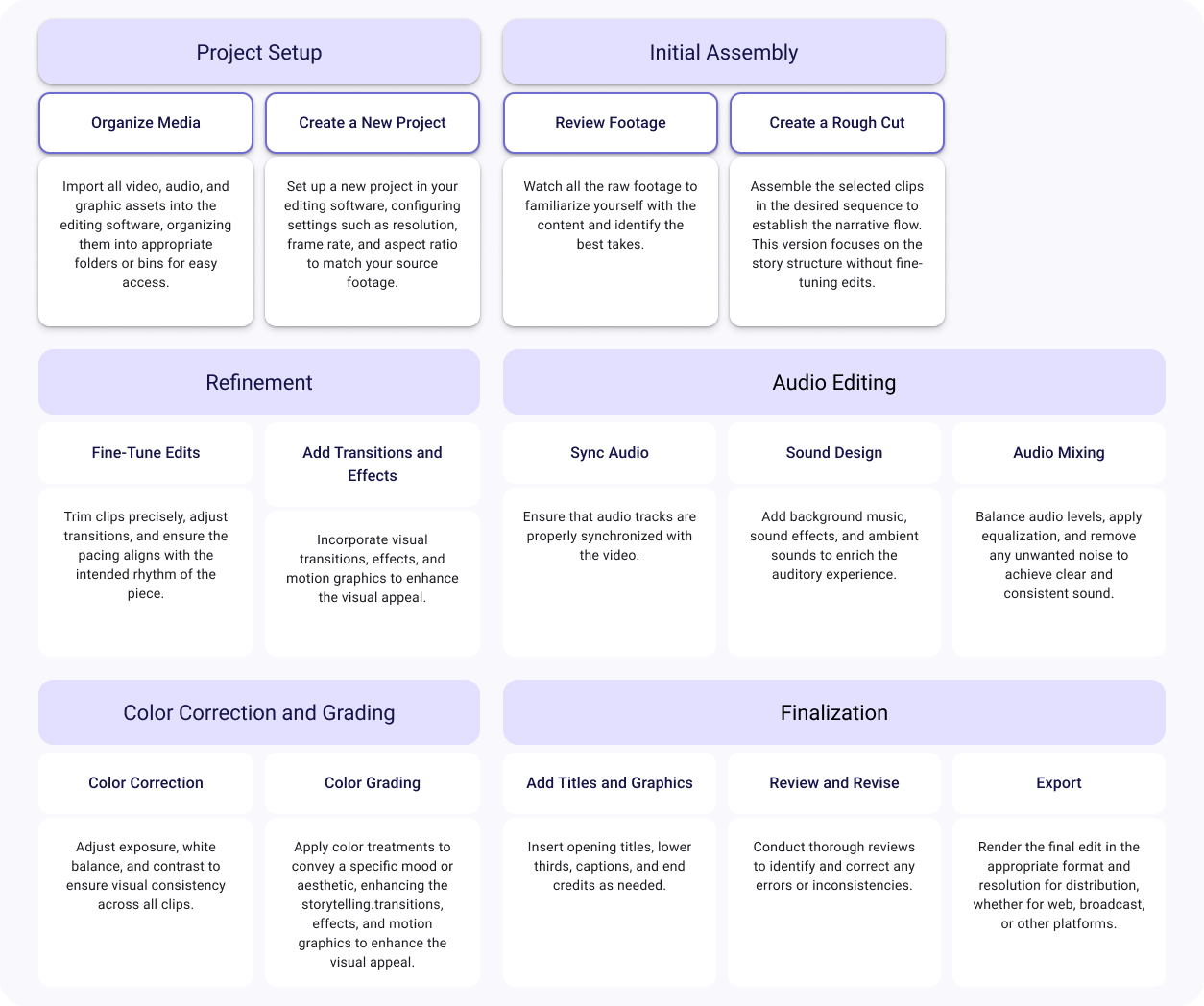
A classical video editing workflow
In traditional video editing workflows, the "Project Setup" and "Initial Assembly" stages often require editors to invest much time in manually sorting and categorizing footage to align with the narrative flow. Tasks such as organizing clips and arranging them sequentially can be tedious and time-consuming. However, the product powered by AI technology may save editors time from this.
Work Flow
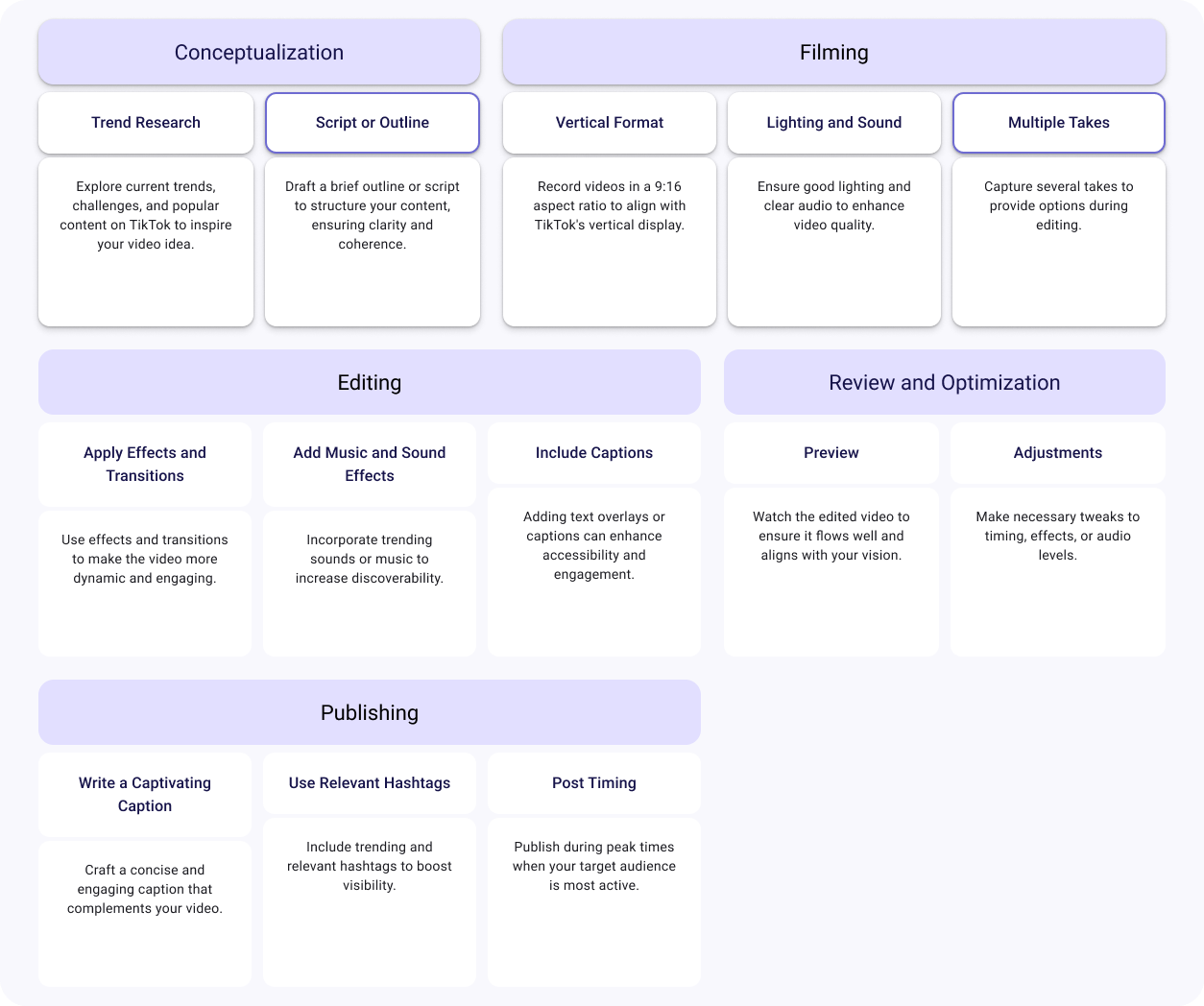
A short-form videos editing workflow
In short-form video production, creators often script their content prior to filming to ensure a coherent narrative. During filming, multiple takes are commonly captured to provide various options for the final edit. Subsequently, the process of sorting and aligning these clips with the intended narrative becomes crucial yet time-consuming. Filtering through numerous takes and experimenting with different editing approaches are important steps to achieve a compelling final product, but they can significantly extend the production timeline.
Work Flow
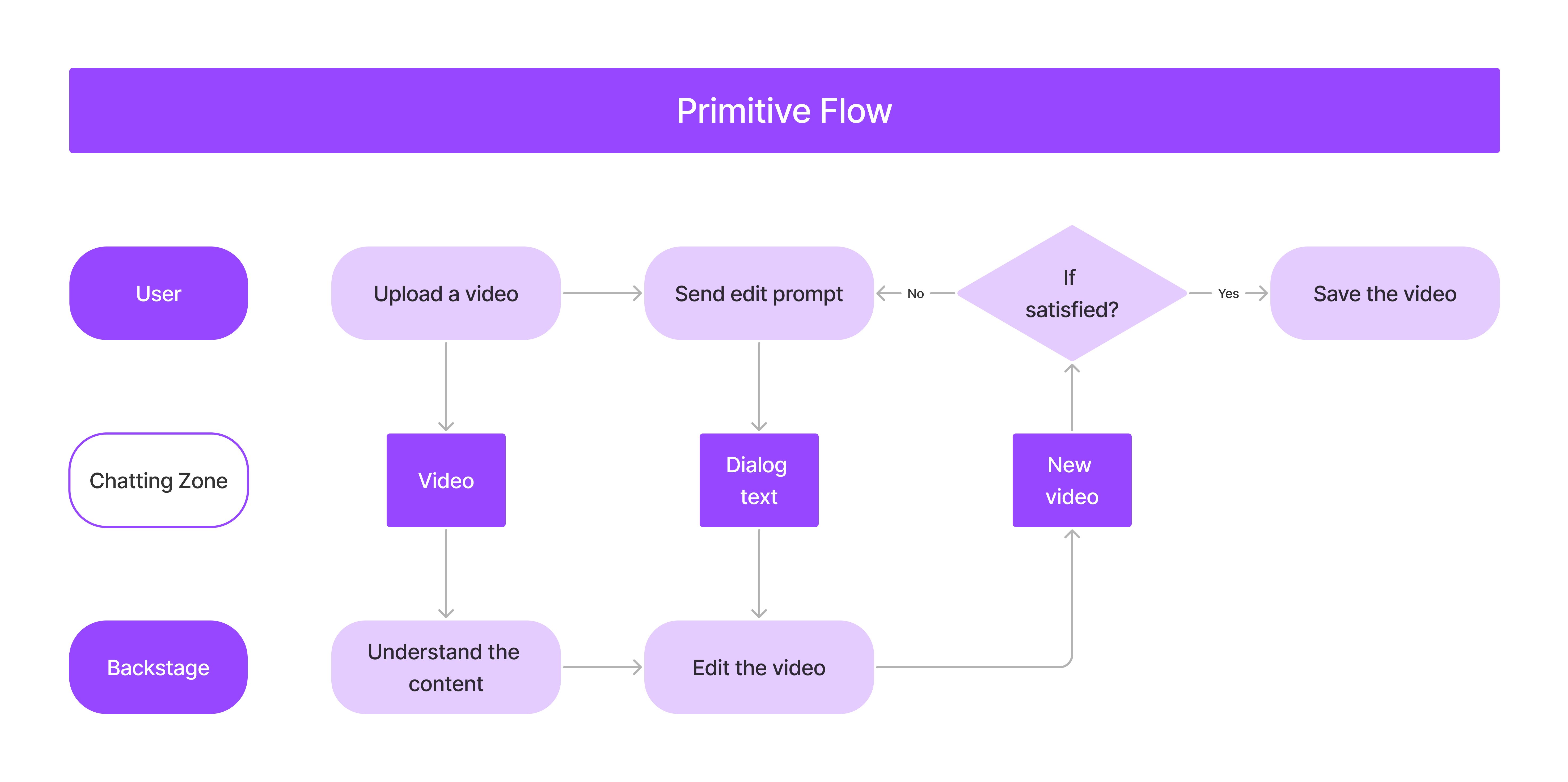
Primitive Flow (of this Product)
Primitive Flow
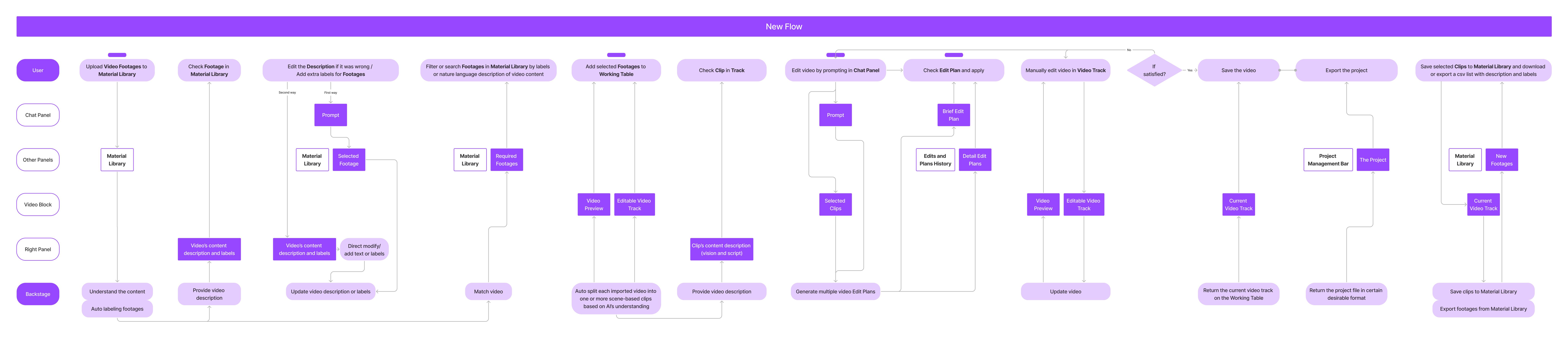
New Flow
New Flow
Designing the Product
Interface Layout and Information Architecture
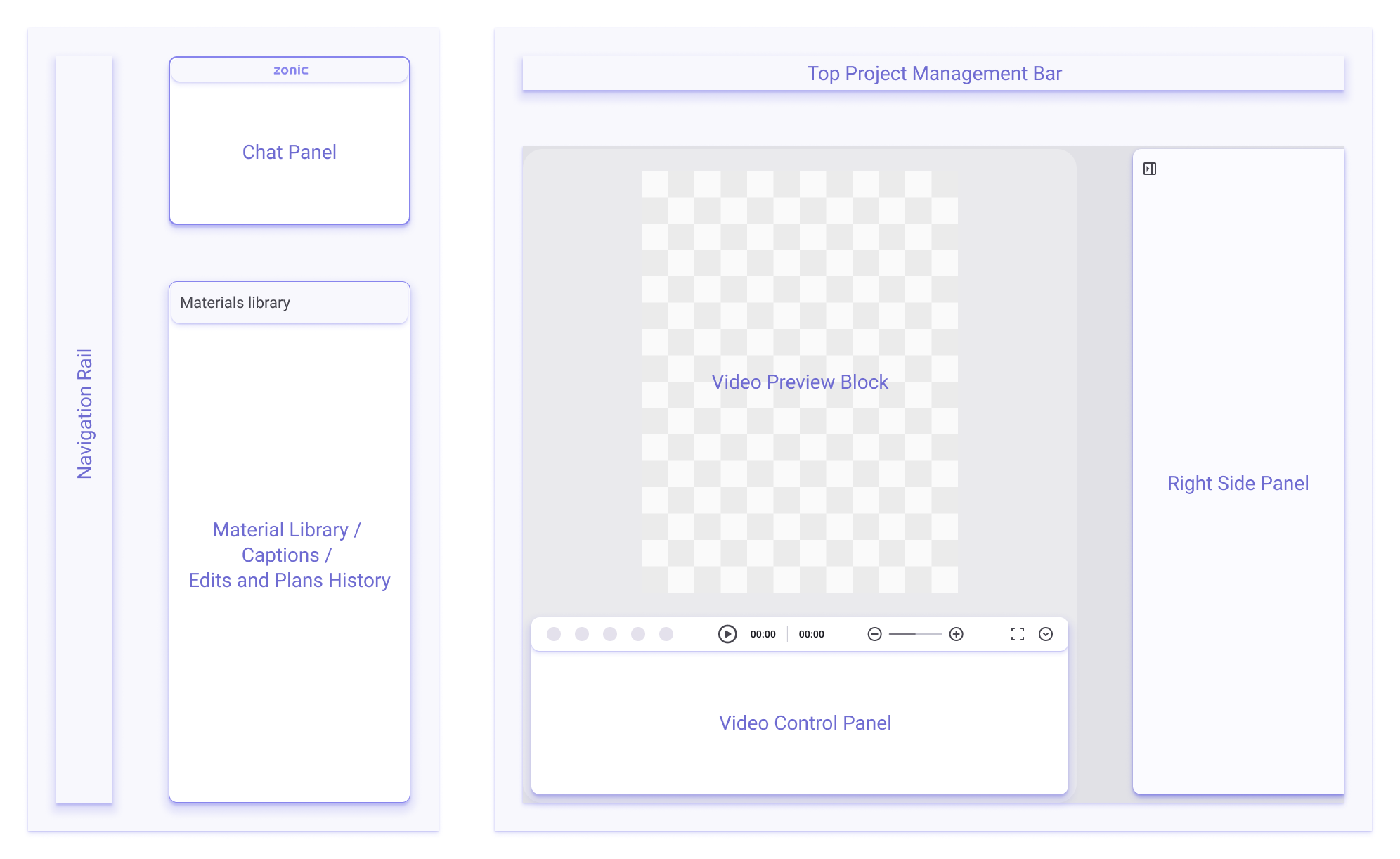
Interface Layout
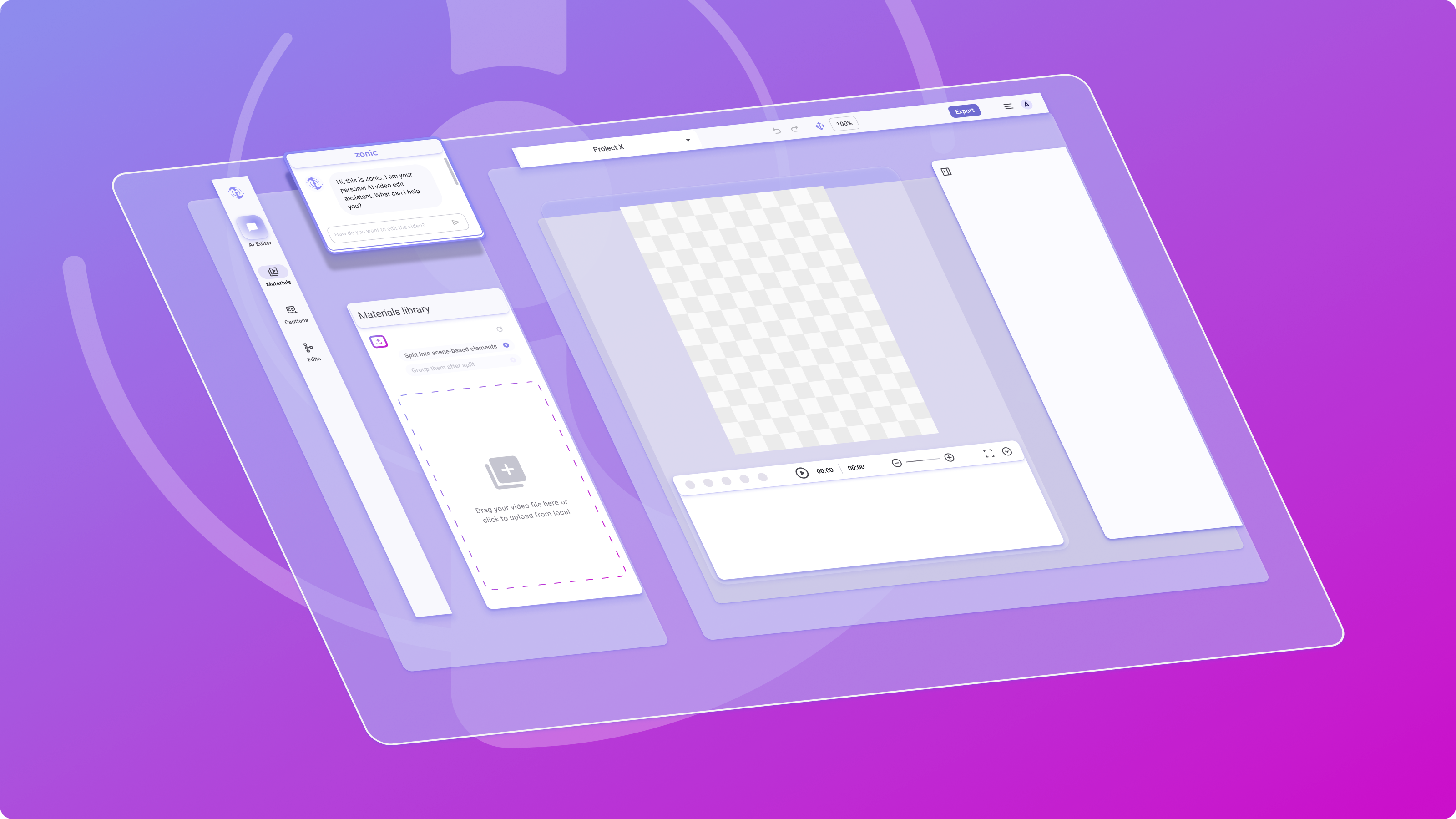
UI_Layout_Illustration_3d
UI_Layout_Illustration_names
UI_Layout
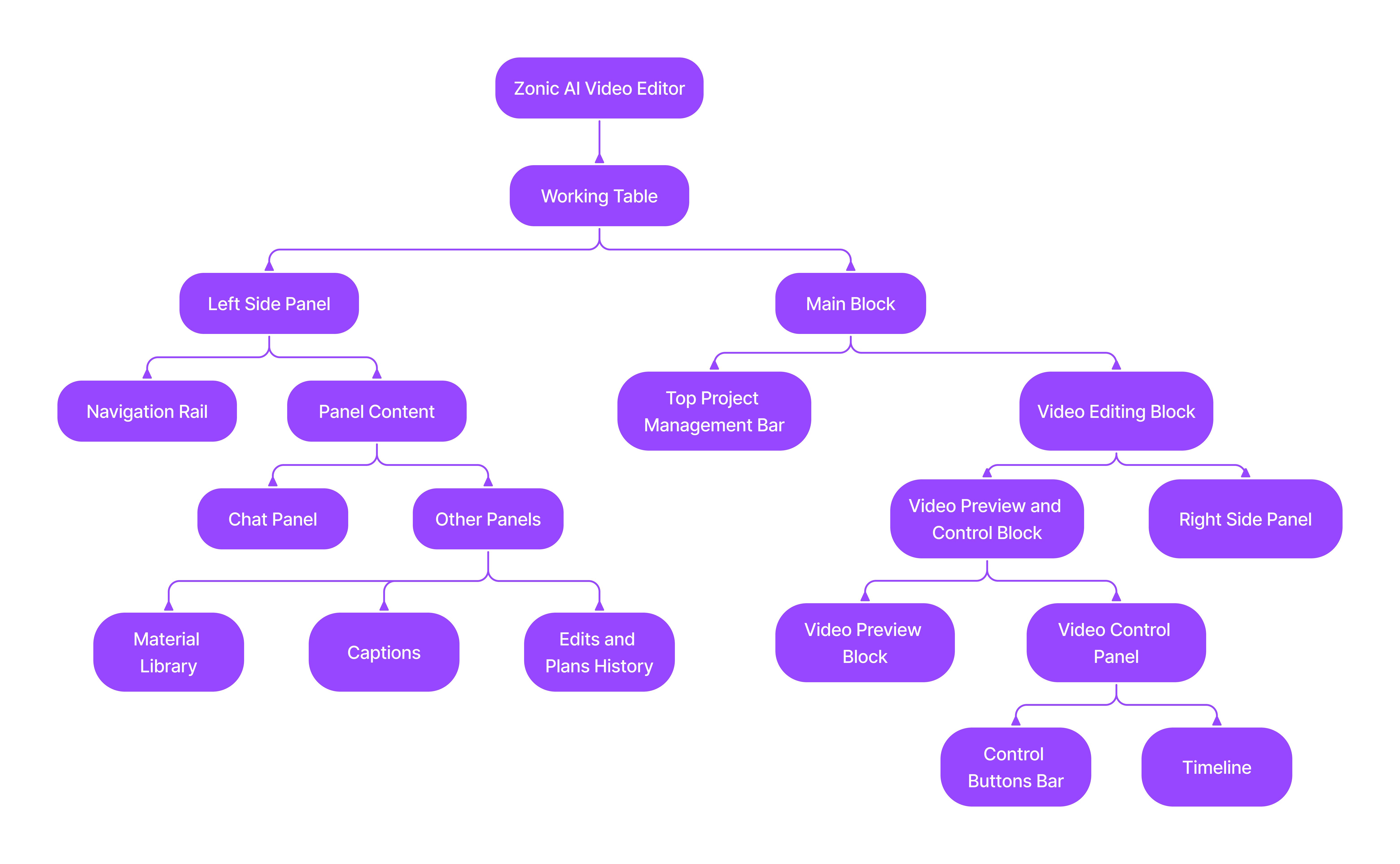
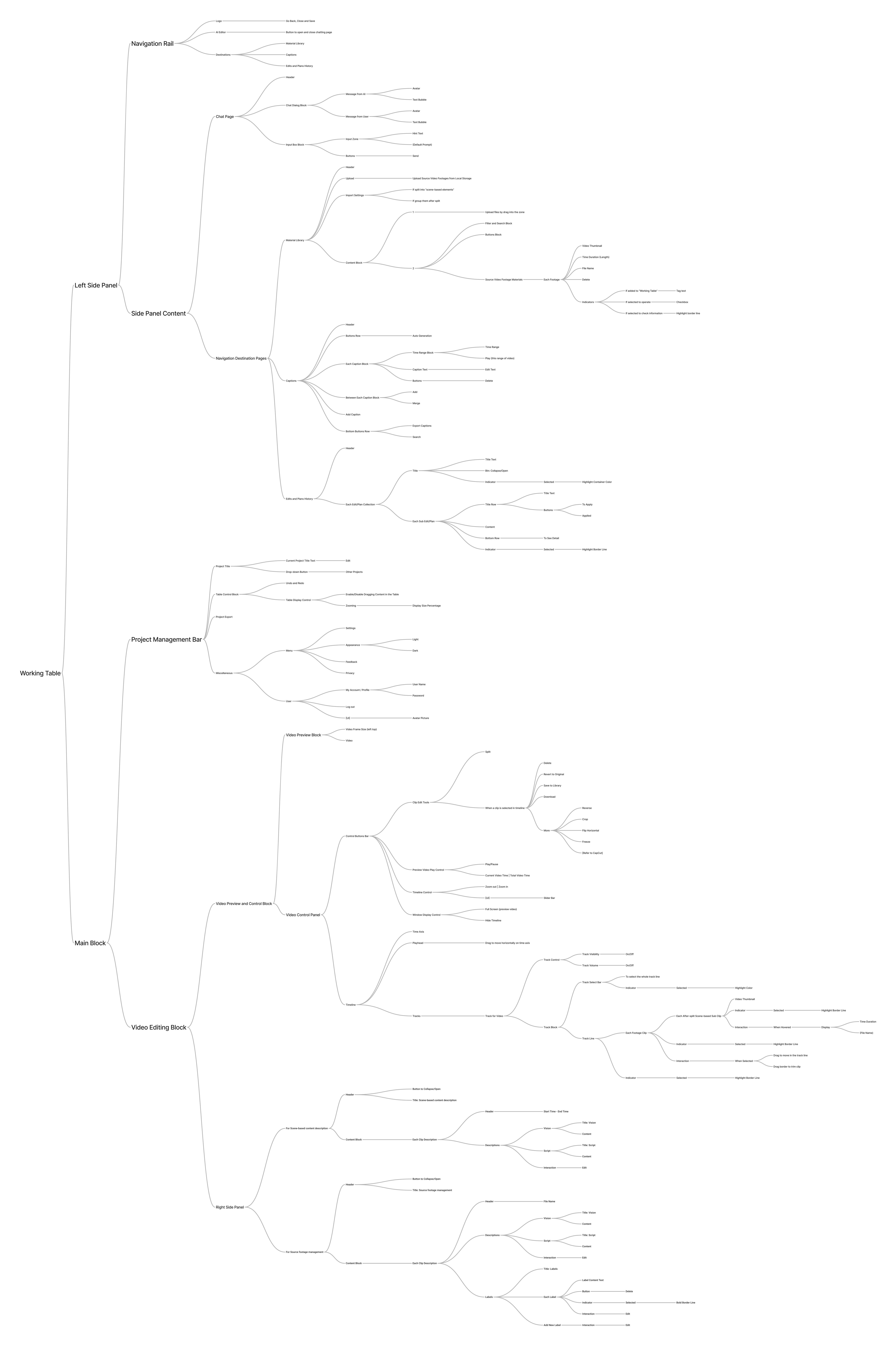
UI Information Architecture
UI_Structure
Key Issues
How to integrate auto editing into the typical editing custom?
Auto-editing in Zonic AI Video Editor involves operations such as replacing clips, removing clips, adding picture-in-picture elements, reordering clips, and more. However, directly replacing a user’s existing video track with an AI-edited version may lead to confusion. Tracks serve multiple purposes, including:
Preserving previous edits for comparison
Layering content (e.g., picture-in-picture)
Experimenting with different versions
To balance automation and user control, Zonic should integrate AI edits in a non-destructive and structured manner.
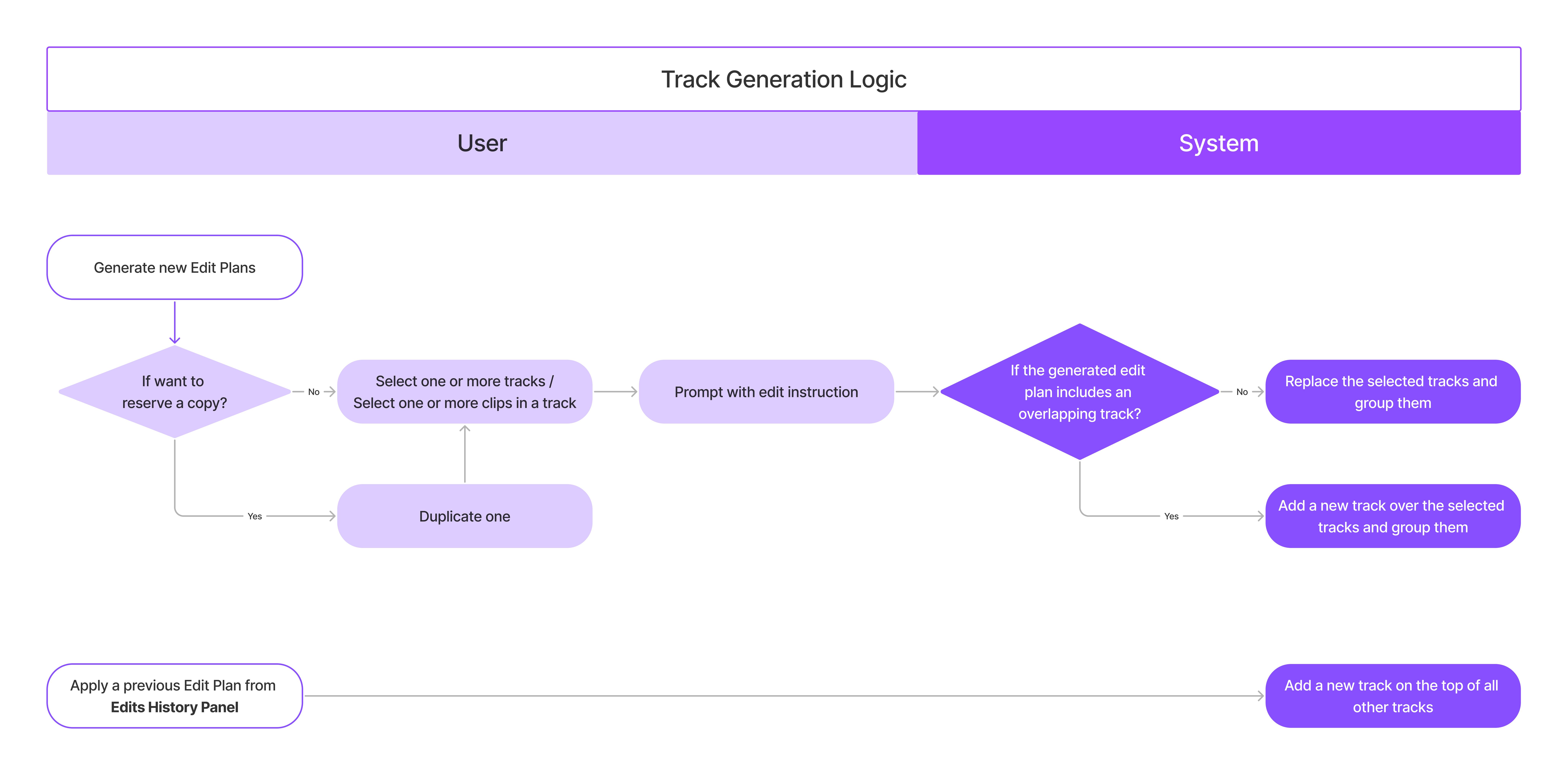
Solution:
Track_Generation_Logic
How to reduce the uncertainty of the AI system and inform the users?
AI in video editing can sometimes misinterpret scenes, make mistakes, or generate unintended results, leading to confusion for users. To mitigate this, Zonic AI Video Editor should disclose AI system states, providing clear feedback, and ensuring user control.
1. Disclosing AI’s Decision-Making & Intention
Challenge:
Users may not understand why AI makes certain edits, leading to mistrust and uncertainty.
Solution:
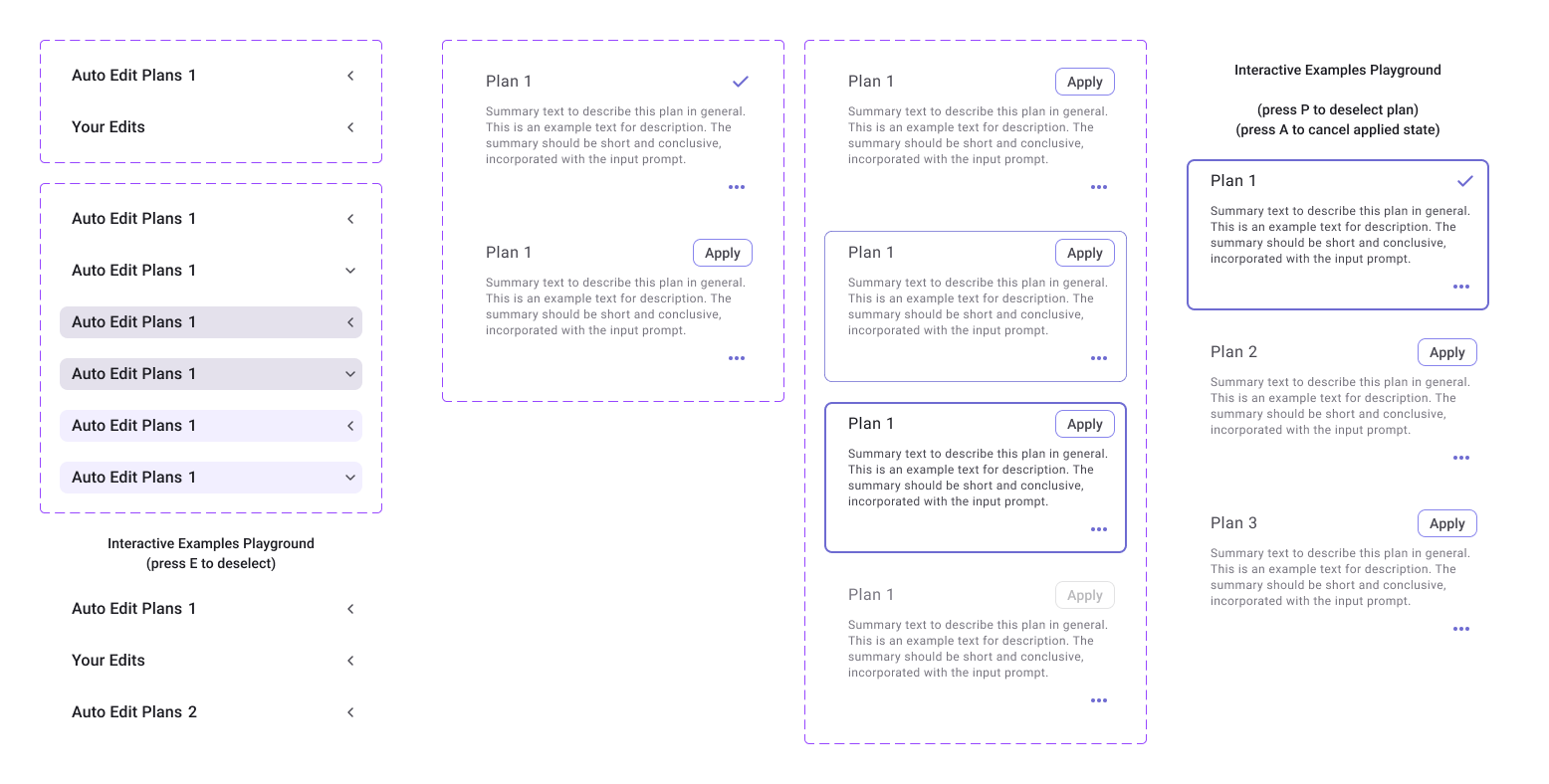
Display AI’s reasoning for its edits in Editing Plan summary. For example, to explain why it selected certain scenes or made specific modifications.
Implementation:
AI presents a clear description before editing, e.g.,
“These clips have similar motion patterns and lighting, so I grouped them for easier editing.”
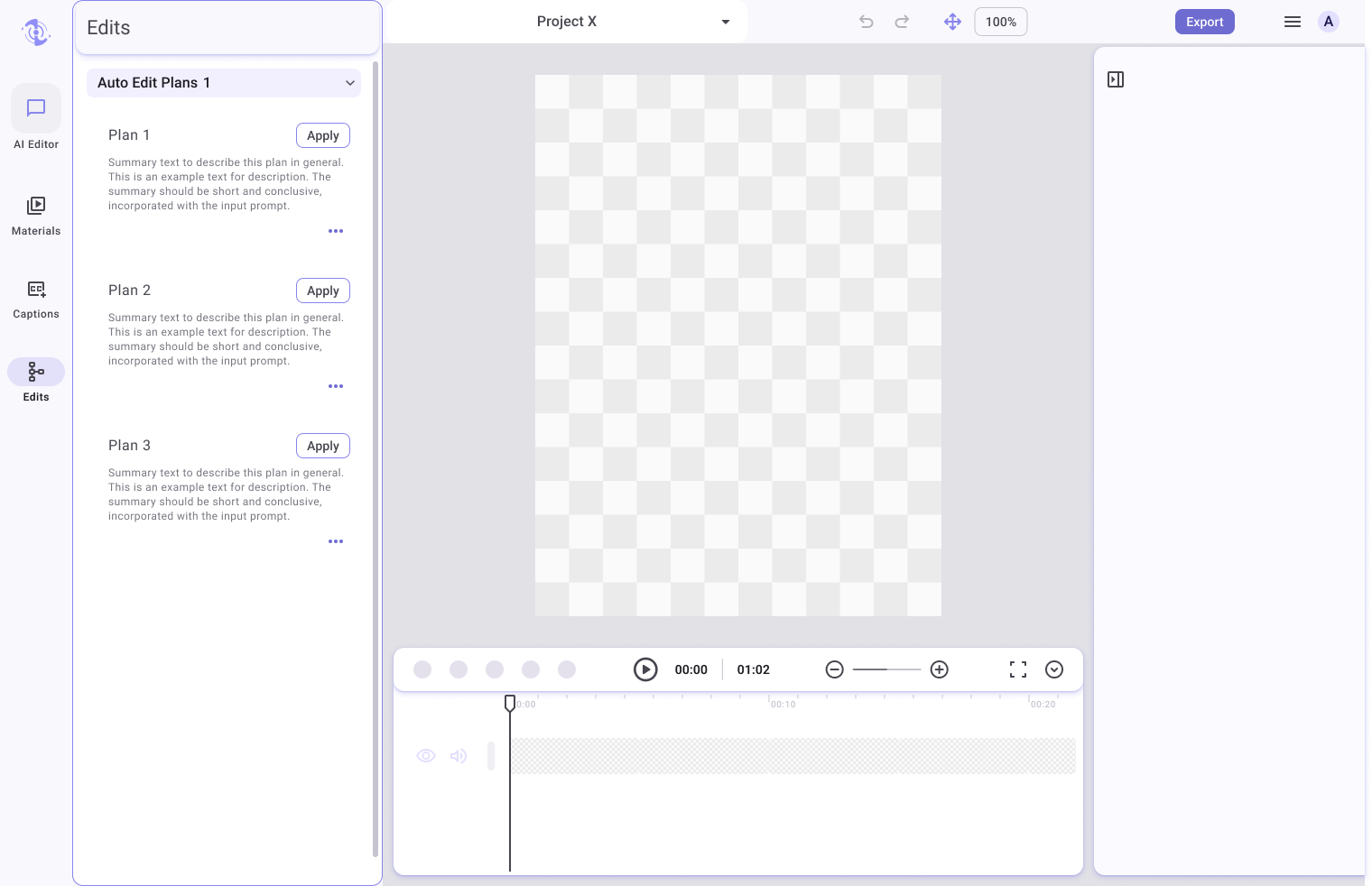
AI-generated Editing Plans include a preview of affected clips, allowing users to review before applying.
imageimage
2. Allowing Users to Correct AI Misinterpretations
Challenge:
AI may hallucinate or misinterpret video content (e.g., mistaking a sunset for a sunrise).
Solution:
Users should be able to review and correct AI’s understanding before applying changes.
Challenge:
Users may feel frustrated if AI unexpectedly alters their project without an easy way to revert.
Solution:
Ensure all AI edits are reversible via undo or track-based isolation.
Implementation:
Allow users to duplicate the to-edit tracks as a reserved copy before using AI edits.
Buttons for undo and redo.
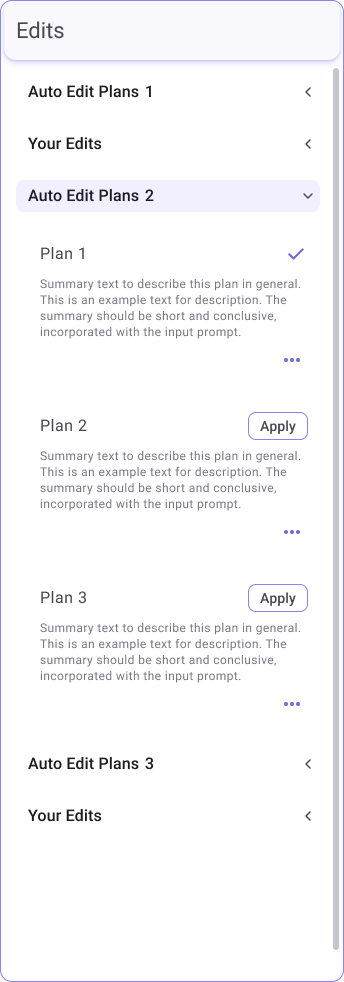
A revision history in Edits and Plans History Panel lets users track changes and restore earlier versions.
image
How to enhance the experience of source footages management?
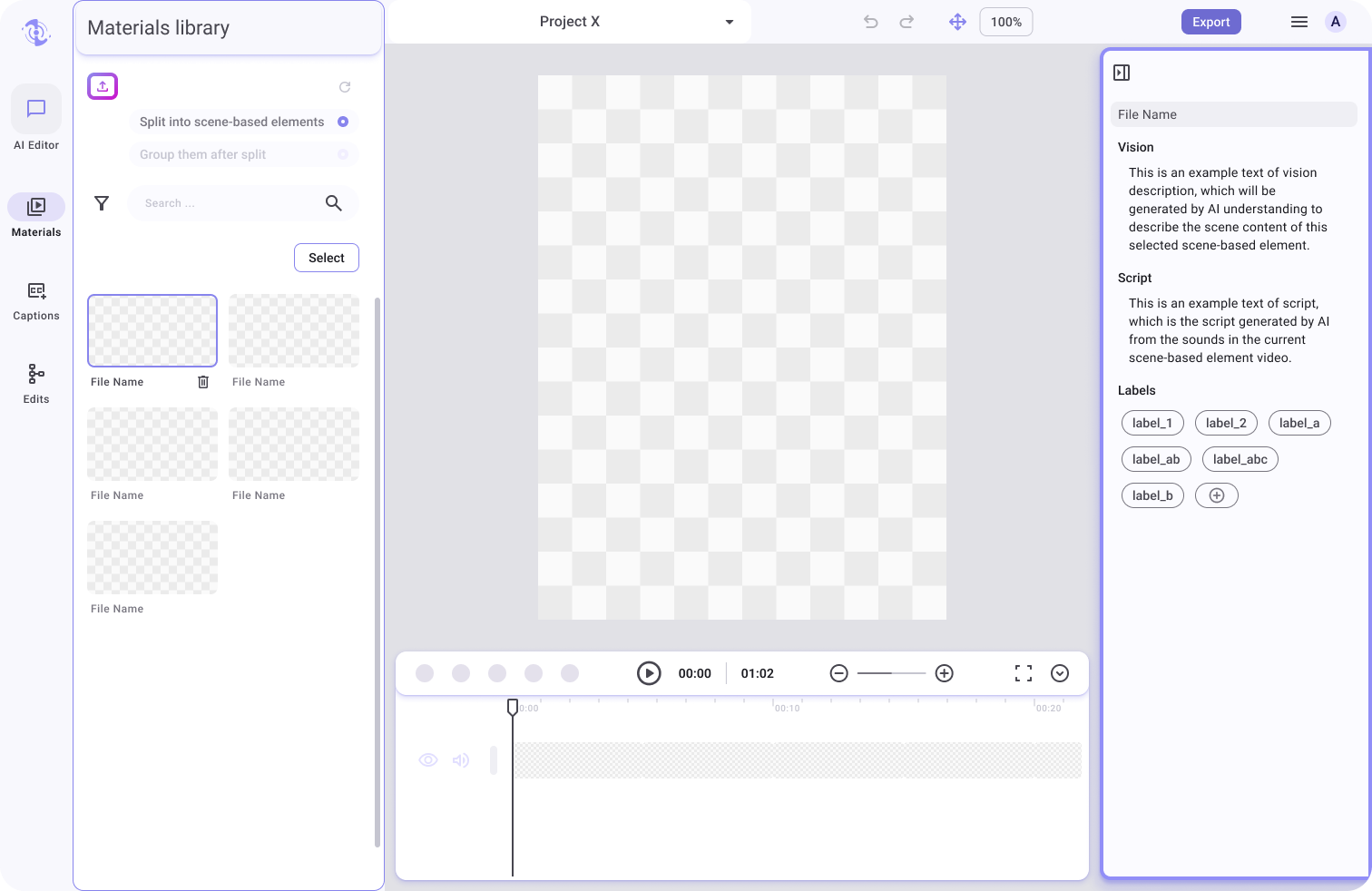
Managing source footage efficiently is essential before formal editing, yet it often involves tedious manual work. Zonic AI Video Editor will leverage AI-driven content recognition and categorization to streamline this process, allowing users to organize, filter, and retrieve footage with ease.
1. AI-Powered Auto Labeling for Quick Organization
Challenge:
Manually sorting and tagging numerous raw footage clips is time-consuming.
Solution:
AI analyzes content upon import and assigns auto-generated labels based on detected scenes, objects, and themes (e.g., "Indoor," "Night Shot," "Close-Up").
Users can manually refine or add custom labels for more personalized organization.
Implementation:
AI-generated labels are displayed in the Right Panel when a footage is selected.
Users can edit AI-generated labels or add their own labels.
Example:
A user uploads a folder of raw footage. AI detects and tags:
"Nature, Daytime, Landscape"
"Interview, Close-Up, Good Lighting"
"City, Nighttime, Fast Motion"
image
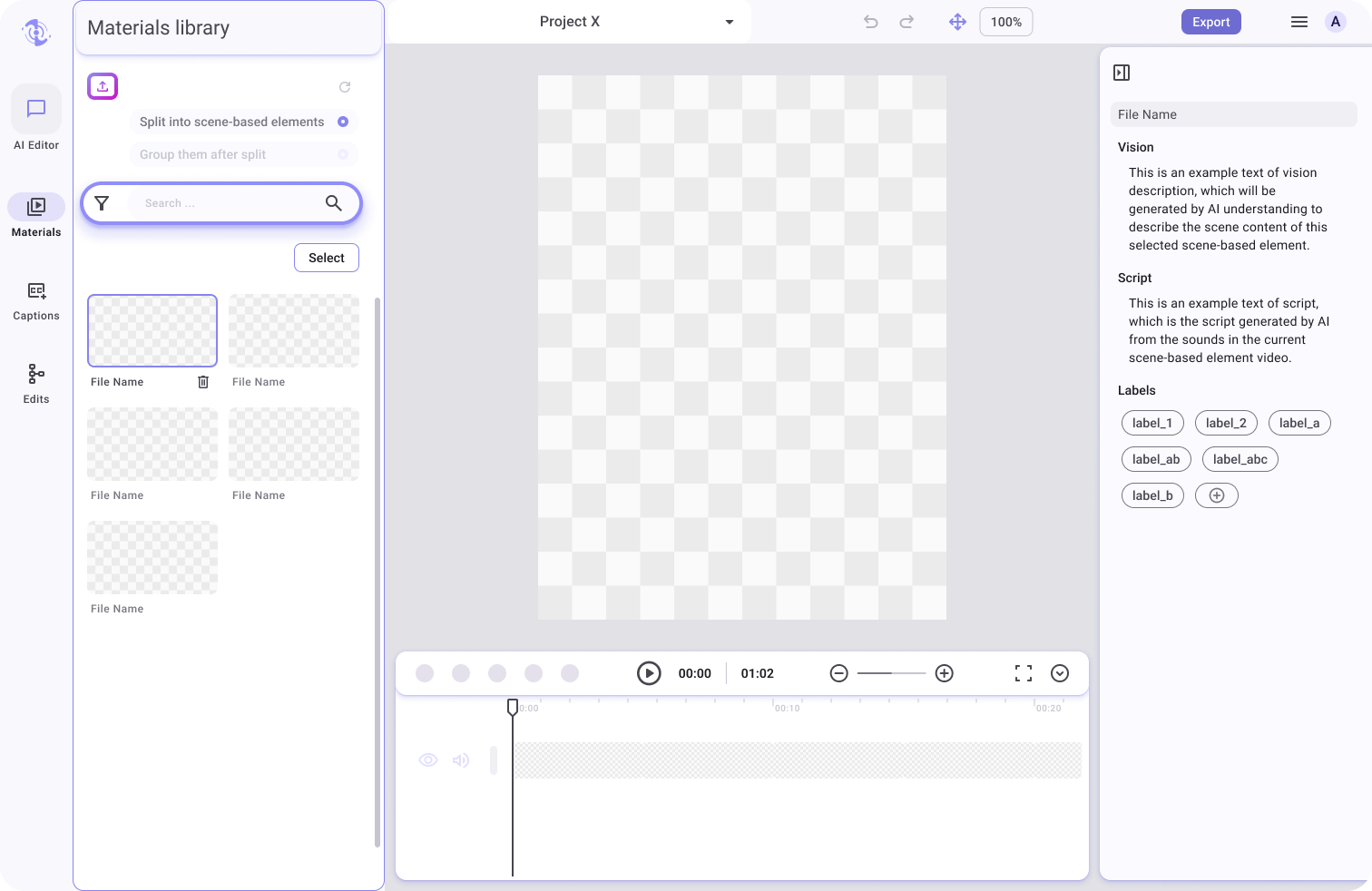
2. Natural Language Search & Smart Filtering
Challenge:
Users may struggle to find specific footage among large collections.
Solution:
Users can search footage using natural language, e.g.,
"Find all outdoor clips with people talking."
AI retrieves matching clips based on content analysis.
Advanced filtering by AI-generated and manual labels allows quick sorting.
Implementation:
Search bar supports free-text queries (e.g., “beach scenes at sunset”).
Filter panel includes checkable labels for refining results.
AI suggests related tags based on previous searches.
Example:
A user types “high-energy crowd scene” → AI retrieves footage labeled “Concert, Crowd, Motion”.
image
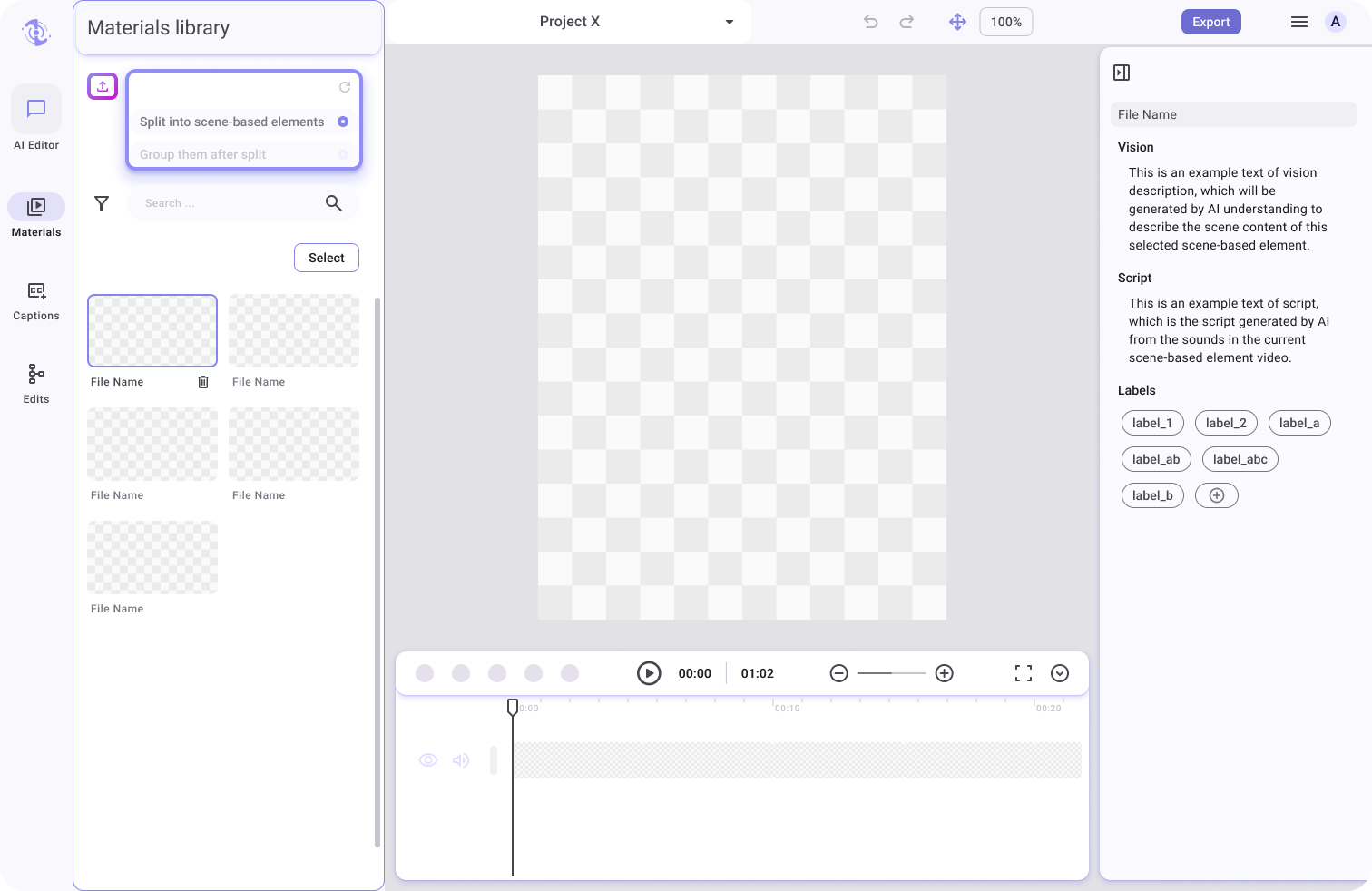
3. Scene-Based Auto Splitting for Efficient Pre-Editing
Challenge:
Raw footage is often long and unstructured, making it difficult to work with.
Solution:
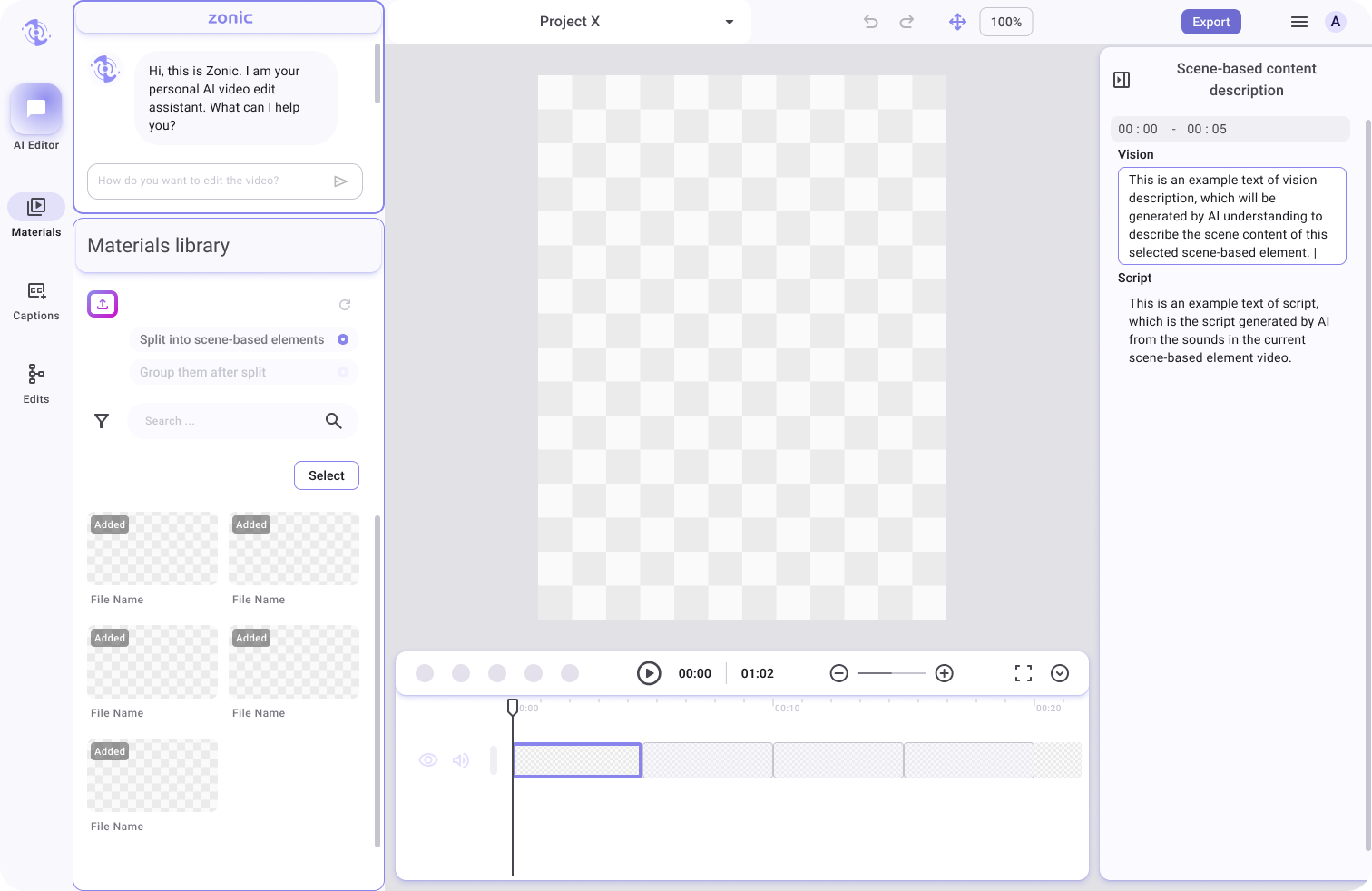
When users import footage into the working table, AI splits it into scene-based elements.
Users can rough edit, trim, or reorder scenes before exporting them back to the Material Library for future use.
Implementation:
Footage is automatically segmented into discrete scenes.
Users can drag & drop pre-edited clips back into the Material Library.
Scene-based clips retain original metadata and labels for easy reference.
image
4. Visual Previews & Quick Access to Footage Insights
Challenge:
Scrubbing through long clips to identify content is inefficient.
Solution:
Thumbnail previews for quick scene identification.
Hover to preview feature for faster review.
AI-generated content descriptions provide key insights at a glance.
Implementation:
Each clip displays snapshot of keyframes and time duration.
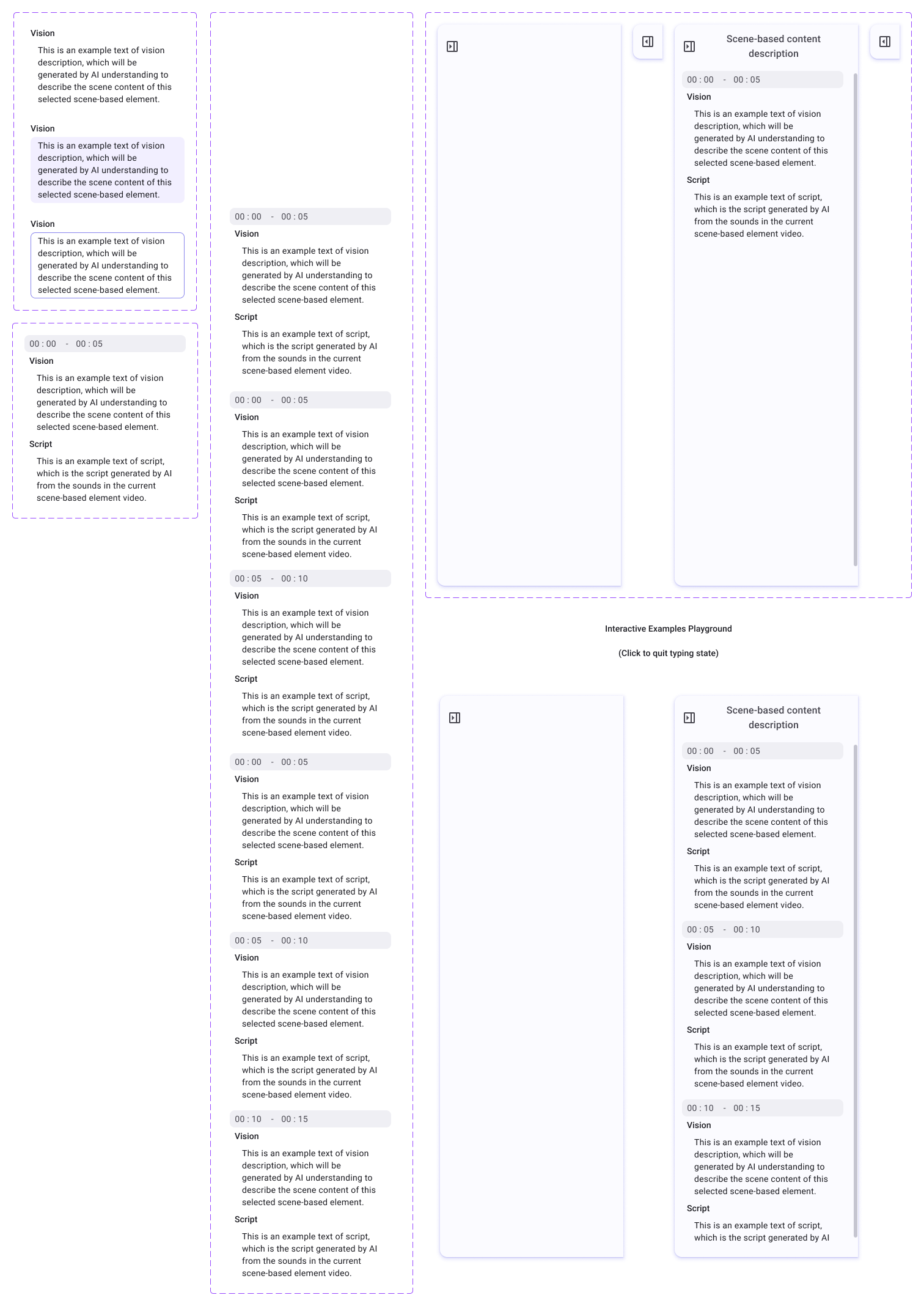
Selecting a clip shows AI-generated description on the Right Panel.
(Users can view metadata like resolution, duration, and aspect ratio without opening the clip.)
How to allow users to try different editing results without interrupting the workflow?
Initially, the design was that each auto-edit update replaced the entire video and its timeline in the Working Table, requiring users to revert or restart to explore different edits. The solution also relied on the branching system, allowing users to save work at specific points and create alternative versions. However, this approach was inconsecutive and interrupted workflow smoothness.
To improve continuity, the updated approach focuses on track-based modifications instead of full video replacements. This allows users to try different edits without losing prior work and enhances flexibility.
Solution:
1. Updating Only the Referred Track Instead of the Whole Timeline
Instead of replacing the entire video in the Working Table, AI updates only the referred track, keeping other tracks intact.
Users can duplicate a track before editing, ensuring a non-destructive workflow.
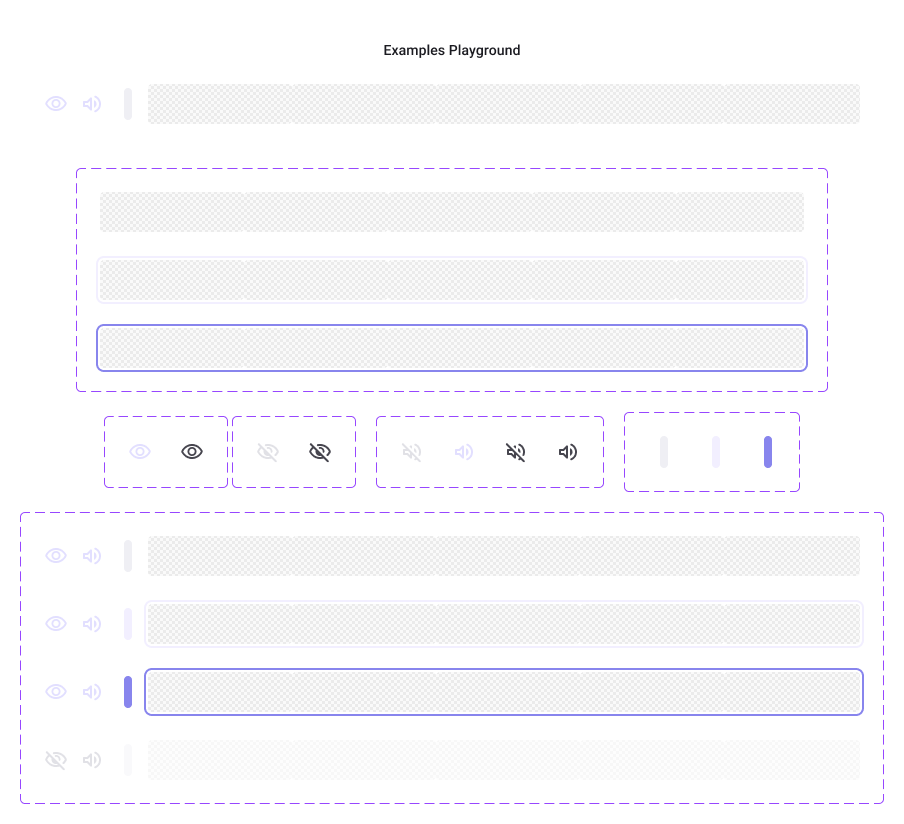
2. Layered Track System for Preview
Rendered preview follows track hierarchy, where top tracks visually override lower tracks in the timeline when rendering, making previous versions ineffective without deleting them.
3. Manual Control Over Track Visibility
Users can manually toggle track visibility to hide it, making previous versions ineffective without deleting them.
This ensures that older versions remain in the timeline and can be referenced or restored at any time.
Instead of managing multiple branches, users can simply stack different versions within the timeline and switch between them dynamically.
This makes the workflow more flexible and seamless.
This method provides a fluid and intuitive way for users to experiment with edits without interrupting their workflow while ensuring all changes remain reversible and controllable.
image
How to balance the professional and casual use scenarios?
Zonic AI Video Editor is designed to streamline footage organization and rough cuts, catering to both casual users who need quick, automated video creation and professional editors who require efficiency in pre-processing raw footage. For professional users, there is complex software such as Adobe Premiere Pro, which offers extensive control at the cost of a high learning curve. Meanwhile for casual users, there is CapCut, which is optimized for simple, quick edits, targeting a broad range of users, though may lack functional complexity. For Zonic, it will be more similar to the CapCut, aims to provide a straightforward editing pipeline for casual users while maintaining efficiency-driven tools for professionals.
1. Differentiating the Editing Experience Based on User Needs
Challenge:
Casual users prefer a guided, automated workflow and a less overwhelming decision-making process, while professionals need flexibility and control as well as access to more advanced functions.
Solution:
The full editing pipeline is streamlined for casual users to ensure a simple, efficient experience.
The pre-processing workflow is designed to integrate with professional workflows, allowing them to prepare raw footage efficiently before exporting to other professional tools.
Default options are provided to avoid extra decision-making.
Tooltips and guidance are integrated into the AI chat, assisting amateurs in achieving their desired editing results.
2. Flexible Track Management for Different Editing Styles
Challenge:
Professionals may use tracks in personalized ways, such as organizing collections of clips or managing multiple versions, while casual users prefer a simplified timeline with minimal complexity.
Solution:
By default, casual users can edit using a single track, ensuring a straightforward workflow.
For those needing more flexibility, tracks can support additional operations such as layering, grouping, and duplicating.
AI edits are applied only to the selected track, without affecting other elements in the timeline unless explicitly instructed, preventing unintended modifications to other tracks.
3. Workflow Customization to Match Different Editing Styles
Challenge:
Professionals and casual users focus on different parts of the editing process.
Solution:
The full editing workflow is optimized for casual users, ensuring simplicity and efficiency.
The pre-processing pipeline is tailored for professionals, helping them organize footage before moving into advanced tools like Premiere Pro.
Implementation:
Casual users get an end-to-end workflow within Zonic, from import to final edit.
Professionals use Zonic for sorting, rough cutting, and labeling footage, then export to external software for full-scale production.